
Lightweight Linux Distros Compared: Revive an Old Laptop in 2026
A practical comparison of lightweight Linux distributions and desktop environments for older laptops, with memory budgets, hardware upgrades and post-install tweaks that actually help.

Title: Lightweight Linux Distros Compared: Revive an Old Laptop in 2026
The laptop in the cupboard is not dead. A 2011 ThinkPad, a netbook with 2 GB of RAM, a hand-me-down with a spinning drive — most of these machines still boot, still have working keyboards, and still do what people actually need: writing, email, spreadsheets, music, a browser with a handful of tabs.
What holds them back is the software they were left running. Current GNOME and KDE desktops expect modern hardware and plenty of memory. Put a lighter stack on the same machine and the difference is obvious within a minute of use.
Where the bottleneck really is
Changing distributions saves less than people hope and more than they fear. Idle memory use drops from roughly a gigabyte or more on a current desktop to somewhere between 350 and 500 MB on XFCE or LXQt. That freed memory matters a lot on a 4 GB machine, and it is close to the whole difference between usable and unusable on one with 2 GB.
The browser, though, usually decides whether the laptop feels usable. Ten tabs in a modern browser can consume more than a gigabyte on their own, and no distribution changes that. Plan for the browser first and the desktop second. A 2011 Core i5 with 8 GB of RAM and an SSD will feel quicker running GNOME than the same machine with 2 GB running the leanest window manager on this list.
It is also worth confirming what is genuinely slow. A failing drive, thermal paste dried out over fifteen years, or a fan packed with dust will make any installation feel broken. Before blaming the software, check the drive's SMART data, watch CPU temperatures under load, and listen to the machine. A cheap SATA SSD does more for an old laptop than any distribution choice — usually more than everything else on this page combined.
A desktop that idles at 200 MB is impressive right up until you open a browser. Budget for the browser first.
The desktop environment matters more than the distro name
Most lightweight distributions are the same handful of components in different packaging. What determines whether you have memory left over is the desktop environment.
- XFCE — roughly 400–500 MB idle, familiar layout, extremely well documented. Still the safest default if you want a normal desktop.
- LXQt — lighter than XFCE and far better maintained than the LXDE it replaced. Usually 350–450 MB idle.
- MATE — a continuation of GNOME 2. Comfortable and slightly heavier, a good fit if XFCE's panel irritates you.
- Window managers: Openbox, Fluxbox, i3, JWM — 150–250 MB idle, configured through text files. Fast on 2 GB, but you will spend an evening setting things up.
- Trinity, as shipped by Q4OS — deliberately looks like 2003, which is exactly what some people want from an old machine.
- Cinnamon, GNOME and KDE Plasma — pleasant on modern hardware, poor fits here.
Those figures are rough and vary by release and by how many background services come along. Treat them as a ranking, not a specification. A tuned XFCE install with fewer applets can beat a neglected LXQt one, and a default installation of anything carries services you will never use.
A shortlist, by how much patience you have
- Lubuntu — Ubuntu flavour on LXQt, current releases, plenty of documentation. It inherits Ubuntu's snap-packaged Firefox, which costs some disk space and startup time; Debian and Linux Lite avoid that.
- Xubuntu — XFCE on the same Ubuntu base. Boring in the best way.
- Linux Lite — XFCE on an Ubuntu LTS base, newcomer-oriented, with a welcome tool that walks through codecs and updates.
- MX Linux — Debian stable with XFCE or Fluxbox editions, sysvinit by default, and unusually good live-USB tools. One of the best picks when you want stability plus rescue utilities.
- antiX — the same family, aimed lower. 32-bit ISOs exist, which matters if your CPU genuinely cannot run 64-bit code.
- Debian with XFCE or LXQt — the netinst image lets you untick everything you do not need, and the result is lean without being fragile. You will need to install a browser and media codecs yourself. Slower to set up, rarely surprising afterwards.
- BunsenLabs Linux — Debian stable with a preconfigured Openbox. The painless route into window managers if you are curious but not committed.
- Bodhi Linux — Moksha desktop, small footprint, distinctive look, smaller community.
- Puppy Linux — runs from RAM, boots in seconds, excellent on machines with 1 GB or a dying disk. Persistence is unusual and daily use can get fiddly.
- Void Linux — rolling, no systemd, very light, and genuinely more work. A good fit only if you already know your way around a terminal.
Before you install: five things that matter more than the distro
- Put in an SSD. A 256 GB SATA drive costs less than a takeaway meal and transforms boot times, application launches, and swap behaviour.
- Add RAM if the slot exists. Going from 2 GB to 4 GB or 8 GB is usually a ten-minute job and doubles the number of tabs you can keep open. Check the maximum the machine supports before buying.
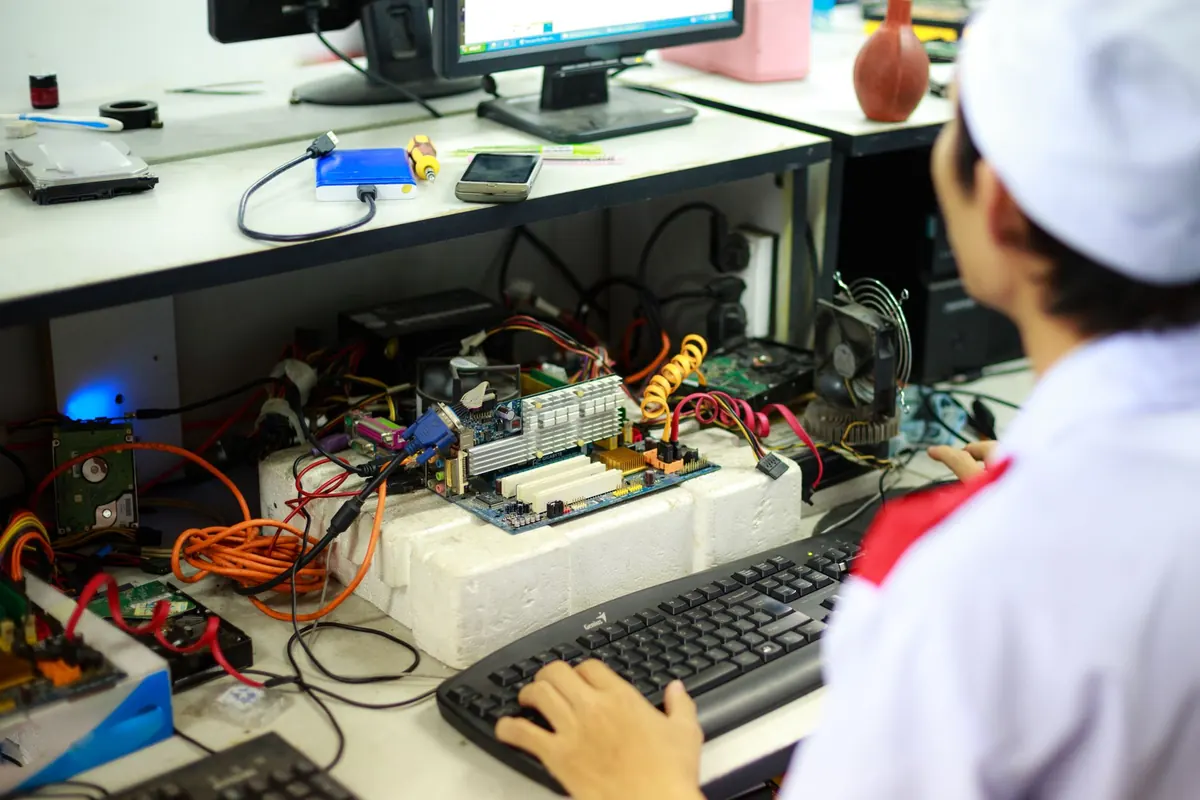
- Clean the fan and replace the thermal paste. Throttling looks exactly like a slow CPU, and it is fixable.
- Update the firmware/BIOS if the vendor still hosts it. Old machines often gain better SATA and USB behaviour from the last firmware revision.
- Test from a live USB before committing. Check Wi-Fi, sound, suspend, and screen brightness first. Those four are where old hardware most often disappoints.
What a lightweight distro will not fix
It will not make video calls smooth on a 1.6 GHz Atom. It will not make modern web apps — chat clients, office suites in a browser, dashboards — feel native. It will not give you a decade of security updates on a 32-bit CPU, because most distributions have quietly stopped building for that architecture.
It also will not make a broken machine work. If the screen backlight has failed, the battery holds four minutes, or the hinges have snapped the chassis, software is not the answer. Be honest about the hardware before spending a weekend on the software.
What it will do is give an old laptop a fair test. Install MX Linux on a ThinkPad with 4 GB of RAM and an SSD, set the browser to something modest, and you have a machine that writes, reads email, plays music, and handles a dozen tabs without complaint. That is not nostalgia. That is a working computer, and it was only ever waiting for the right software.
Photo: SHVETS production / Pexels