


Master the Linux Terminal: 25 Commands Every New User Should Know
A practical, example-driven tour of 25 terminal commands for new Linux users, covering file navigation, process control, permissions and package management.
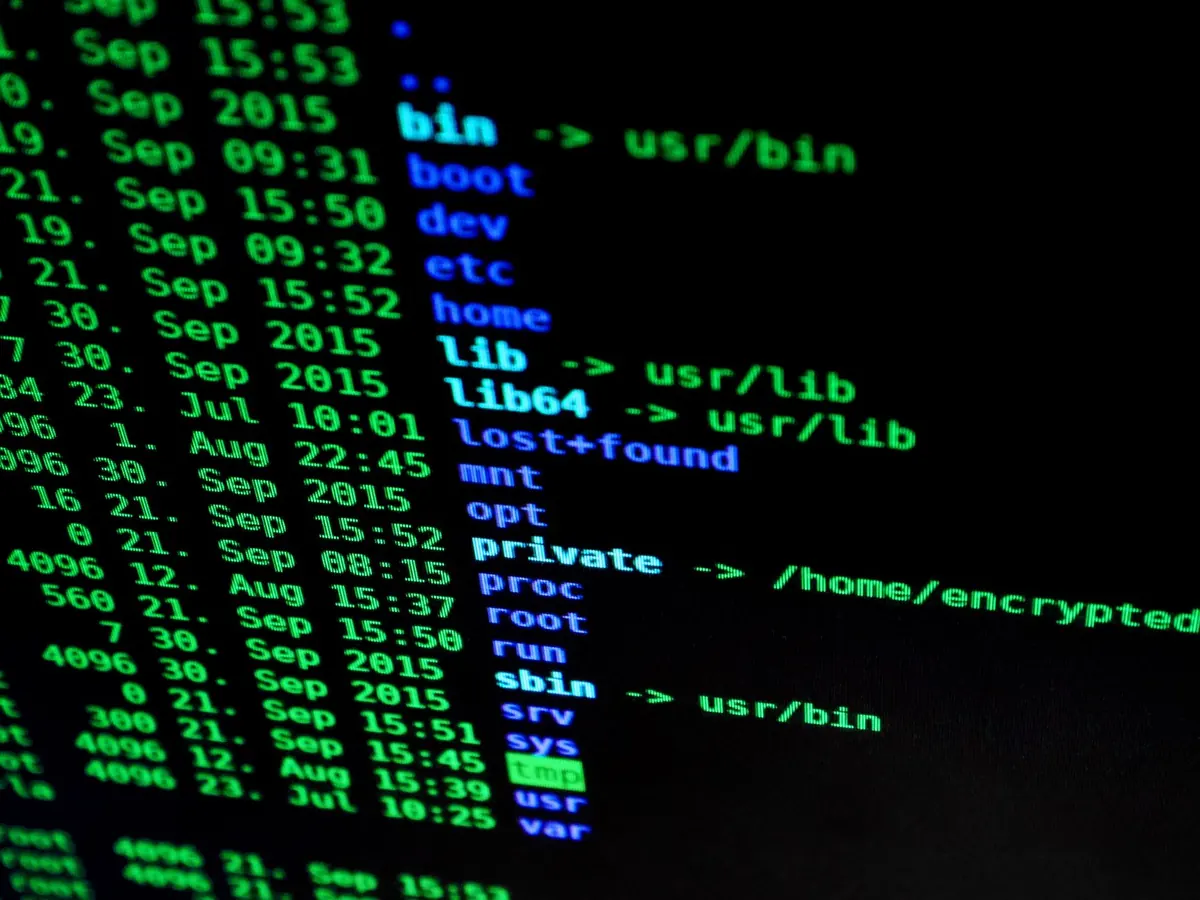
A terminal window opens, the cursor blinks, and nothing on screen tells you what to type. Plenty of new Linux users close it right there and go back to the file manager. That instinct is understandable, but it costs you speed. The command line is not a memory test, and it is not here to replace your desktop. It is simply a shorter route to jobs you already do: finding a file, renaming a folder of images, stopping a program that froze, updating the system. Learn a couple of dozen commands and the blinking cursor stops being intimidating.
Start With Where You Are: pwd, ls, cd
Type pwd and the terminal tells you which folder you are standing in. ls lists what is inside it. Add flags when you want detail: ls -l shows permissions, owner, size and modification date; ls -lh prints sizes in KB and MB; ls -a includes hidden files, the ones whose names start with a dot.
Most commands accept a path, so you rarely need to travel first. ls -lh /var/log works from anywhere. When you do want to move, cd is the command: cd /etc goes there, cd .. goes up one level, cd ~ returns home, and cd - jumps back to the previous directory, which is a small mercy when you are bouncing between two folders on opposite ends of the disk.
Create, Copy, Move and Delete
Four commands handle most file chores. mkdir -p projects/site/css creates nested directories in one pass instead of three. touch notes.txt creates an empty file or updates the timestamp of an existing one. cp draft.txt draft-backup.txt makes a copy, and cp -r photos/ /mnt/backup/ copies a folder with everything inside it.
mv does two jobs: mv draft.txt final.txt renames a file, and mv final.txt ~/Documents/ moves it. Then there is rm, the one to treat with respect. There is no trash can and no undo. Read the whole line before pressing Enter, and use rm -i while you build the habit, so it asks before deleting. Before running anything recursive, list the target first:
ls ~/old-project && rm -r ~/old-project — look, then delete.
Read Files Without Opening an Editor
cat config.txt dumps a whole file to the screen, which is fine for short ones. For anything longer, less config.txt is better: scroll with the arrow keys, search with /, quit with q. head -n 20 app.log shows the first twenty lines and tail -n 20 app.log the last twenty. Add -f and tail -f /var/log/syslog follows a log as it grows, which is how you watch something break in real time.
When you know what you are looking for but not where it is, grep is the tool. grep "error" app.log prints matching lines, grep -i ignores case, and grep -rn "timeout" /etc searches every file under a directory and shows line numbers.
Pipes, Redirection and the Tools That Save Typing
The vertical bar sends the output of one command into another. ls -lh ~/Downloads | grep ".iso" lists only the ISO files. > writes output to a file and overwrites it; >> appends instead. So df -h >> disk-report.txt keeps a running record of disk usage.
Three habits cut the typing considerably. Press Tab and the shell completes filenames and commands for you. Press Ctrl+R and start typing part of an old command to search your history; history prints the list, and !! repeats the last command. Finally, man ls opens the manual for any command, while ls --help gives the short version. Even experienced users read these pages regularly.
Permissions, sudo and Ownership
In ls -l output, a line like -rw-r--r-- tells you the owner can read and write, and everyone else can only read. chmod +x deploy.sh makes a script executable. chmod 644 notes.txt sets the common read-write for you, read-only for others. chown alice:alice notes.txt changes who owns a file, which you will mostly need on shared machines.
sudo runs a single command with administrator rights. It will not ask "are you sure?" — it does exactly what you typed. Use it deliberately, and be wary of copying long sudo commands from the internet without reading them line by line first.
Processes: See What Is Running, Then Stop It
ps aux lists every running process. top — or htop if you install it — shows them live, sorted by CPU or memory, so a runaway browser tab is easy to spot. To stop something, note its process ID and run kill 4821. If it ignores that, kill -9 4821 forces it, though you lose any unsaved work in that program.
Inside the terminal itself, Ctrl+C cancels whatever is running. Ctrl+Z pauses it instead; then jobs lists paused tasks, bg resumes one in the background, and fg brings it back to the foreground. Add & to the end of a command — sudo apt upgrade & — to start it in the background from the outset.
Installing and Updating Software
Package managers differ by distribution, but the rhythm is the same: refresh the index, then install. On Debian, Ubuntu and Mint that is sudo apt update followed by sudo apt install htop. Fedora and RHEL use dnf, Arch uses pacman, openSUSE uses zypper. apt search finds packages, apt remove uninstalls them, and sudo apt upgrade applies available updates.
Keep to one package manager per system. Mixing them, or adding repositories you have not checked, is a reliable way to create dependency problems. Services are managed separately with systemctl: systemctl status ssh shows whether a service is running, and systemctl enable --now ssh starts it and sets it to start at boot.
A Week of Small Reps
Reading about commands does little on its own. Choose three from this list and use them for real work today, even when clicking would be faster. Force yourself to open a terminal to check disk space, rename a batch of files, or restart a stuck service. Within a week the useful ones stick, and you will start reaching for the terminal because it is quicker, not because you are practising.
Keep a plain text file of commands you had to look up, with your own notes on what each flag does. Skip anything involving rm, sudo or dd that you cannot explain out loud. The goal is not to memorise all twenty-five — it is to know they exist and where to find the details.
Here is the full set to work through:
- Navigation: pwd, ls, cd
- Files: mkdir, touch, cp, mv, rm
- Reading: cat, less, head, tail, grep
- Finding and help: find, man, history
- Permissions: chmod, chown, sudo
- Processes: ps, top, kill, systemctl
- Software: apt (or dnf, pacman, zypper)
Add pipes, redirection, Tab completion and Ctrl+R to that set and you can handle most everyday Linux work from a single prompt. Everything else you can look up when you need it.
Photo: Pixabay / Pexels